
Kaeri knows where you stopped.
Apps for Mac, iPhone, iPad, Android, Android TV, Windows and Linux, and one for the terminal.
Compare the apps
Search and the calendar.
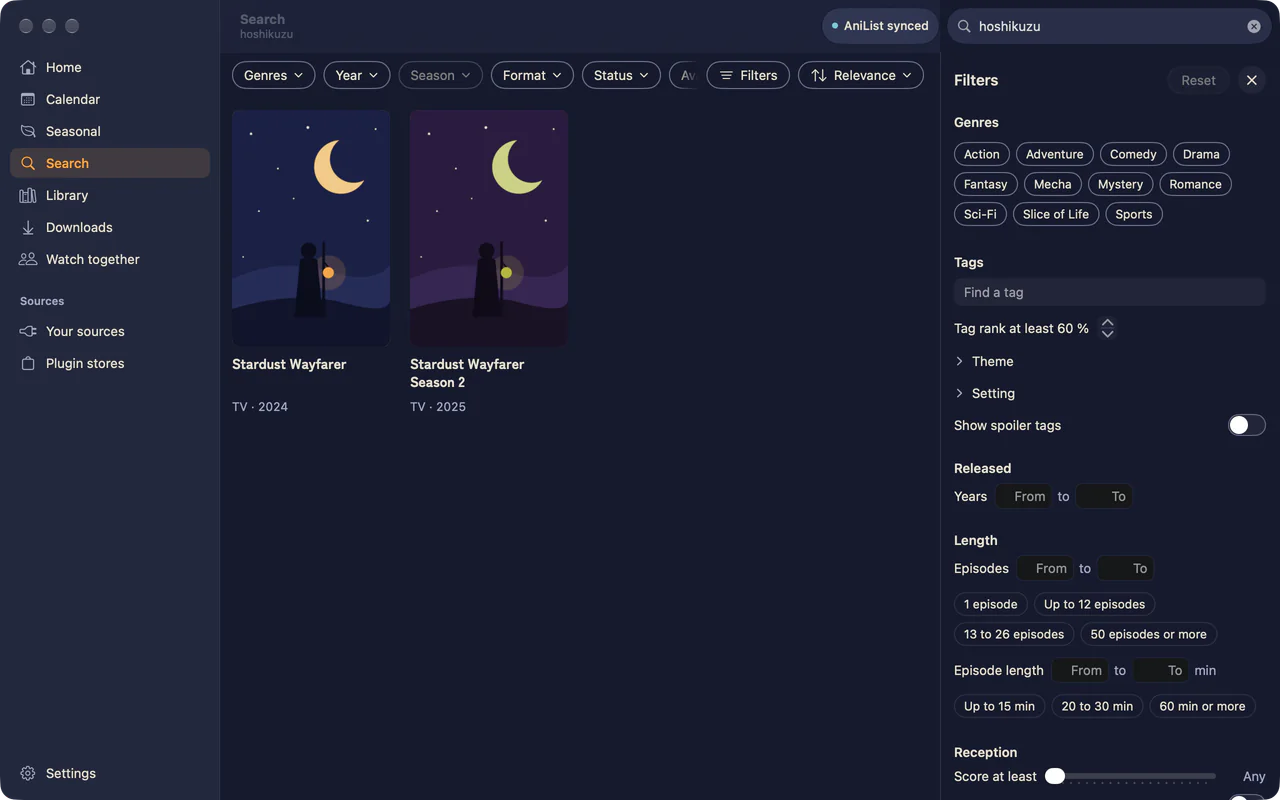
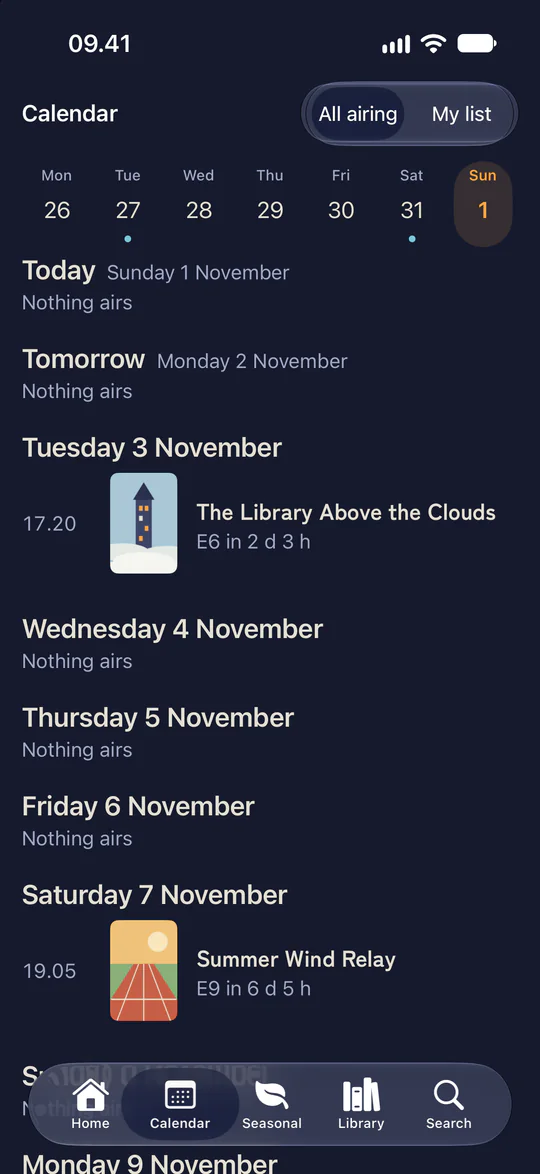
Browse by genre, year and season without an account, or follow the seasonal charts and the week’s calendar. A ~ marks an estimated air time, and a Dub tag marks an episode already dubbed.
Upscaled as it plays.
Episodes play in mpv, upscaled by ArtCNN or Anime4K, with the opening and ending marked on the seek bar. Drag the line to compare a 480p stream.


Finds the opening by itself.
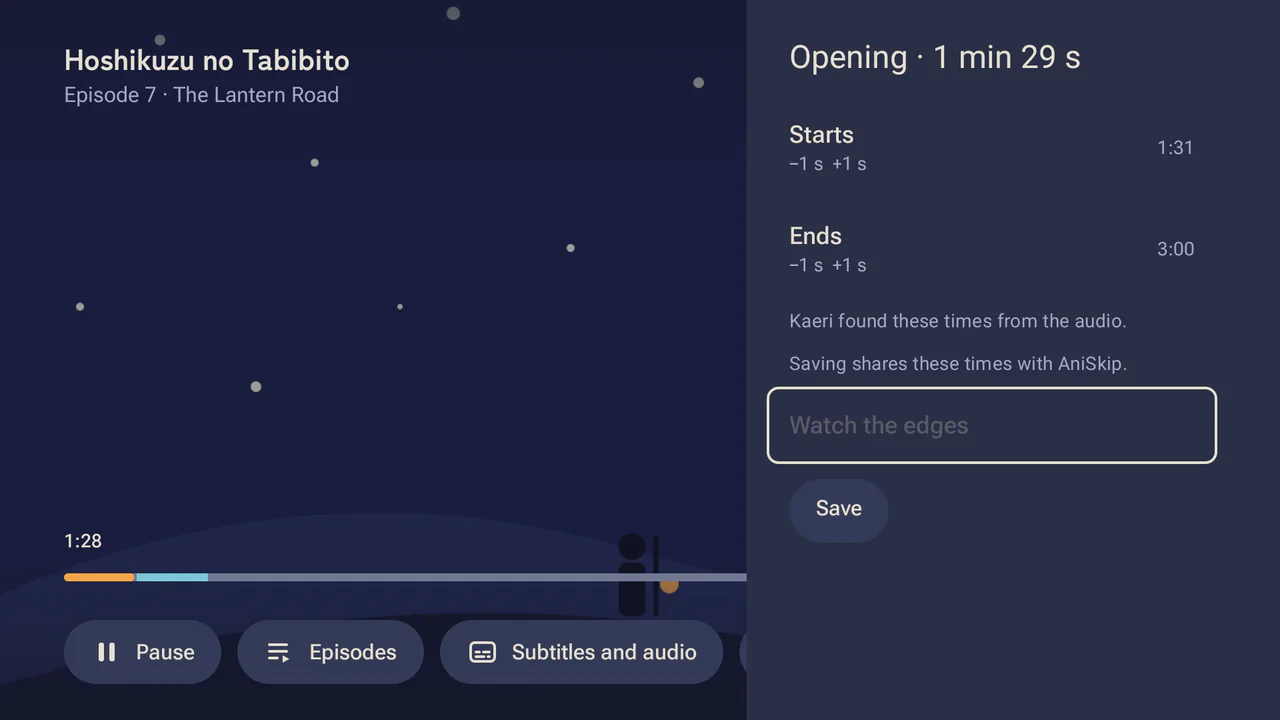
When AniSkip has no times for an episode, Kaeri compares its audio with the show’s earlier episodes on your device and finds the opening and ending. Found times get the Skip button, and once you confirm them or skip them twice, they skip by themselves like any others. Finding pauses in power saving mode and when storage runs low.
Watch together, and talk.
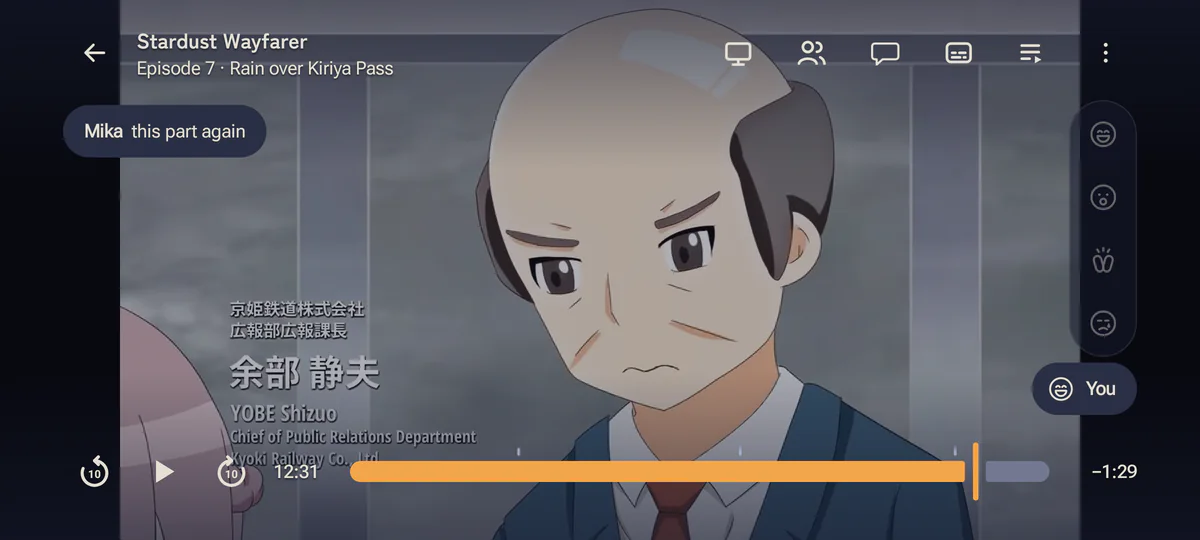
Start a party and send the link. Everyone’s player stays in step, with chat and reactions in the room. Each person plays from their own sources, and the party runs on a Syncplay server you choose.
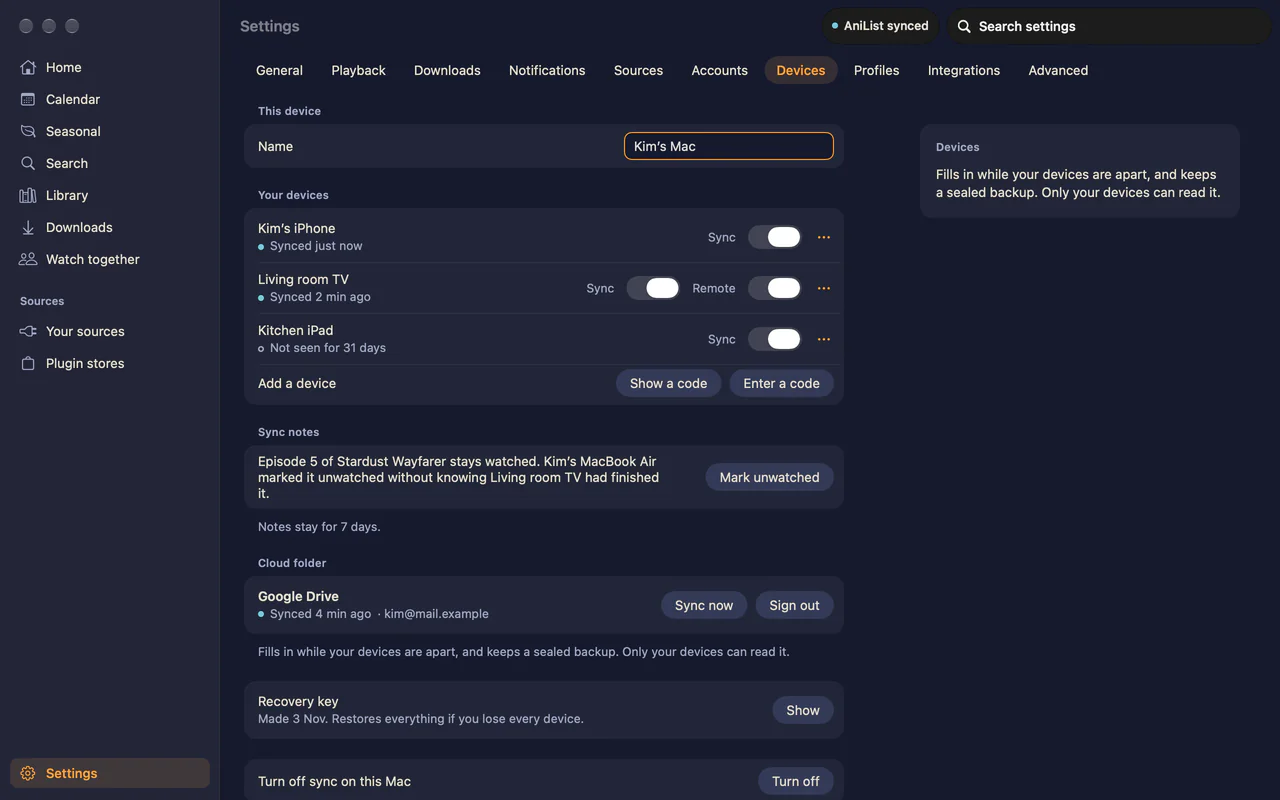
Sync without an account.
Pair your devices on the same Wi-Fi, or add a cloud folder you already use, and your history, resume points and lists stay the same on each. Changes are sealed so only your devices can read them, and Kaeri runs no server for it. Your trackers still get each change in order, even after a week offline.
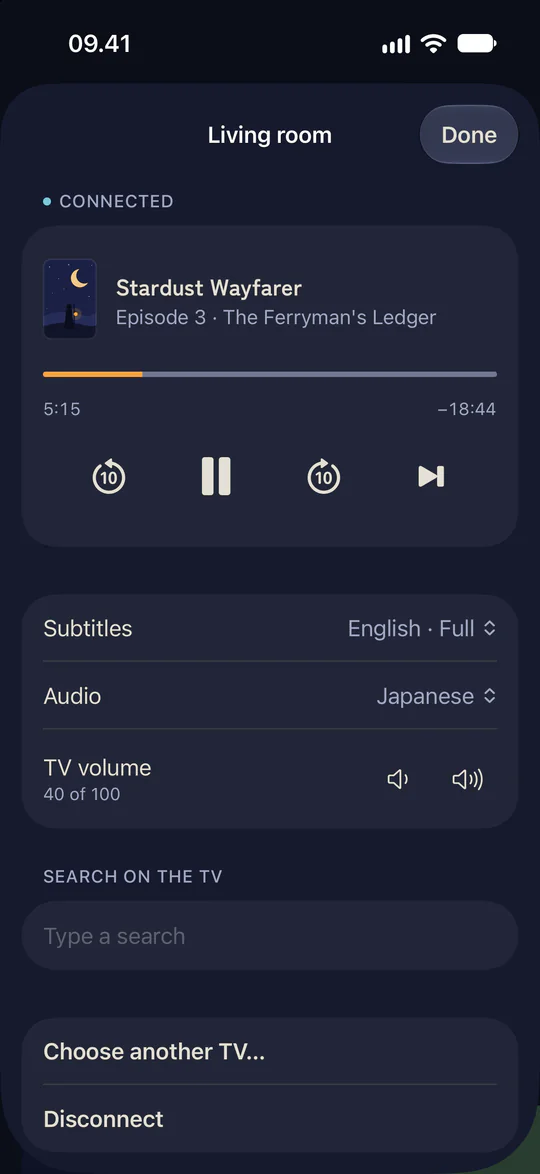
Your phone is the TV remote.
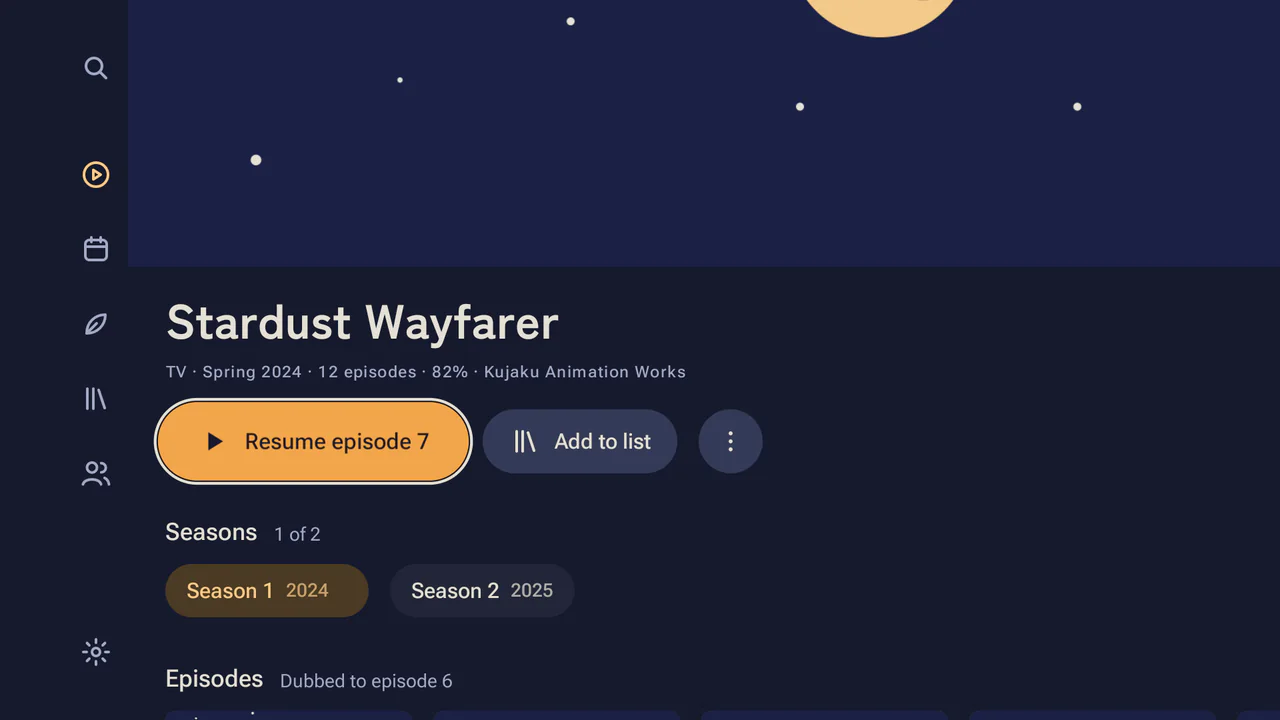
Send an episode to the Android TV app, then pause, seek and switch subtitles from your phone. The Mac, iPhone, iPad, Android, Windows and Linux apps all work as the remote.
You choose the sources.
Sources are plugins, and each one can reach only the hosts it lists. Run a store for your own plugins and your own devices. Every device you add gets a token of its own.
And a lot of small things.
Watching
- Skip and Up next
- Skip the opening, and start the next episode from the credits.
- Resume
- Picks up where you stopped.
- Pick a source
- Kaeri says in one line why it picked a stream, and you can choose another.
- Subbed or dubbed, per show
- Set it once and each show remembers.
- Subtitle and audio tracks
- Every app switches the file’s tracks. Mac, Windows and Linux also load a subtitle or audio file.
Title pages
- Trailers
- The trailer plays muted in the banner, and the Play trailers setting decides when.
- The facts
- What a show is based on, its studio, how its run went and where it also streams.
- More about this show
- Cast, staff, rankings, tags and similar shows.
- Episode discussions
- Read and reply to each episode’s thread on AniList.
- Up next for you
- When your queue runs short, new seasons, your Planning list and similar shows follow it, each saying why.
- Watch again
- A show you have finished starts over from episode 1.
Alerts and widgets
- New-episode alerts
- Off until you turn them on, per show.
- Widgets
- Continue and Airing today on your home screen.
- Handoff, Spotlight, Shortcuts
- Pick up a show on another Apple device.
- Live Activities
- On iPhone, the Lock Screen shows what’s playing and a show about to air.
Other
- Updates
- The Mac, Android, Android TV, Windows, Linux and terminal apps update themselves.
- Torrents on the TV
- Scan the TV’s code, then type the proxy on your phone.
- English or romaji
- Pick how show titles are written.
- Command line
--jsonoutput for your scripts.
Where the apps differ.
All eight apps have search with filters, the calendar, seasonal charts, trailers, subtitle and audio tracks, skip, resume, Up next and watch parties. They all sync between your devices and with AniList, Simkl and Trakt, join plugin stores and play torrents. The table shows where they differ.
- Available
- In development
- Not on this platform
| Feature | Mac | iPhone | iPad | Android | Android TV | Windows | Linux | Terminal |
|---|---|---|---|---|---|---|---|---|
| Watching | ||||||||
| Built-in mpv | Your mpv | |||||||
| Upscaling | ||||||||
| Opening and ending marks | mpv’s | |||||||
| Skip times from the audio | ||||||||
| Load a subtitle file | mpv’s | |||||||
| Picture in Picture | Mini player | Mini player | ||||||
| Title pages and Continue | ||||||||
| Episode discussions | Read only | |||||||
| More about this show | Similar shows | |||||||
| Up next for you | ||||||||
| Watch again | ||||||||
| Tracking | ||||||||
| MyAnimeList and Kitsu | Kitsu only | |||||||
| Per-show settings | Source only | |||||||
| Devices | ||||||||
| Play on TV and remote | Receives | |||||||
| New-episode alerts | At launch | In config | ||||||
| Home screen widgets | ||||||||
| Live Activities | ||||||||
| Handoff, Spotlight, Shortcuts | ||||||||
| Updates from the app | Via SideStore | Via SideStore | ||||||
Play on TV from the terminal app is in development, and so are home screen widgets on Windows.